
Cloud
When the Cloud page is opened for the first time and no cloud configuration has been uploaded, the system displays a warning message:
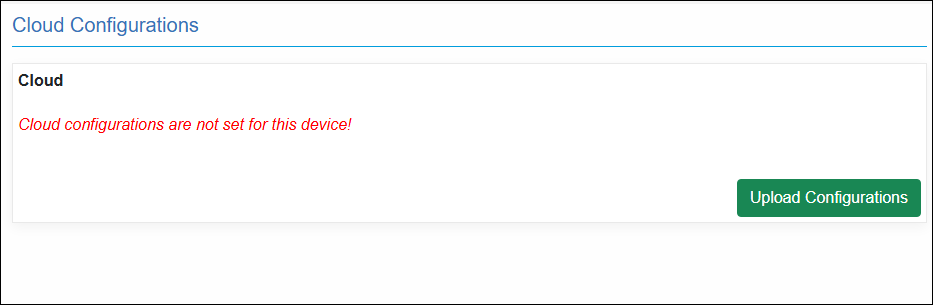
- Upload cloud key configuration file supplied by BioBusiness, the page is automatically updated with the cloud and monitor information.
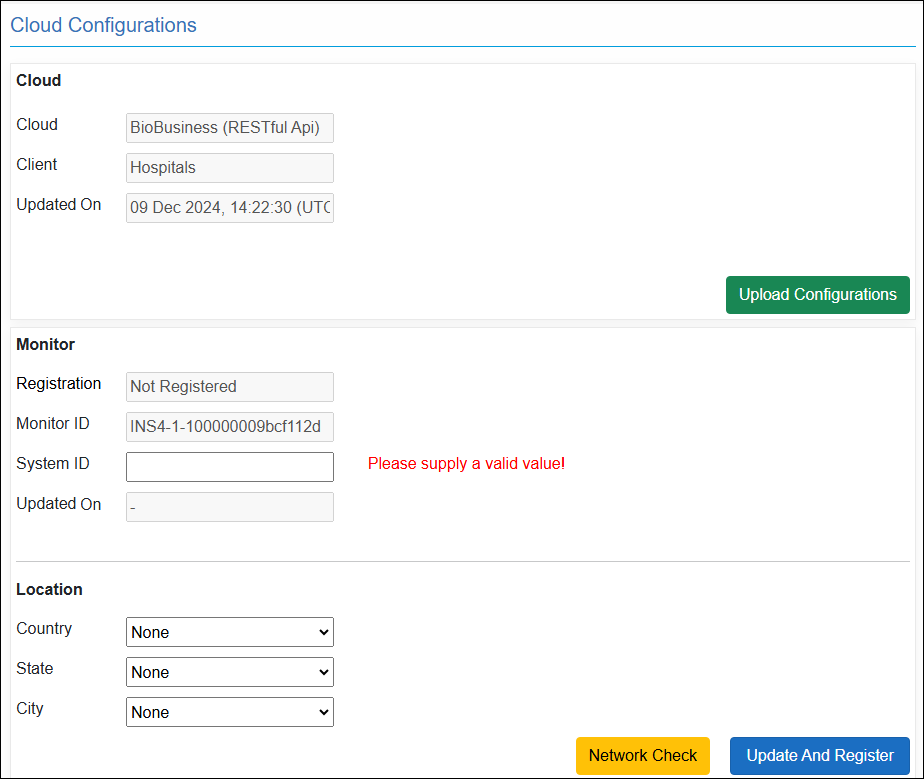
- Check Cloud Access:
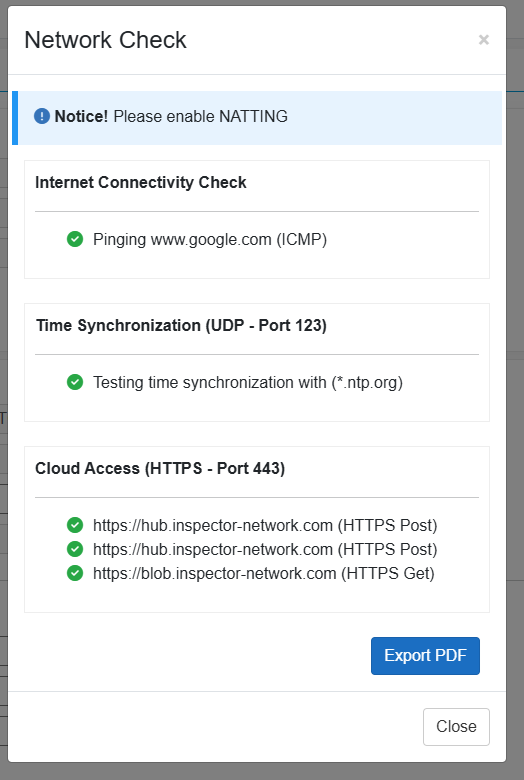
- Click "Network Check" button, and let Inspector check all required access.
- Make sure all tests have succeeded.
- If there one or more failure, export a PDF report for the results and share it with the IT team.
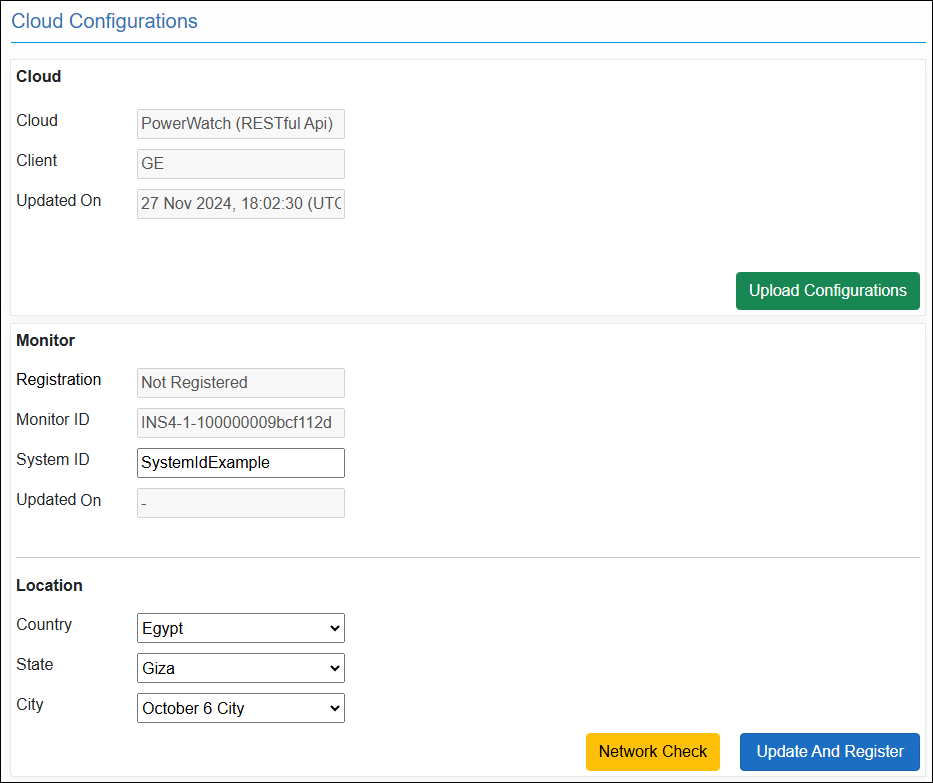
3. Set System ID and location:
- System ID is a unique identifier for the system that Inspector is monitoring.
- If a duplicate System ID is entered, the system will reject the value, and the update will not be applied until a unique System ID is provided.
4. Update and Register:
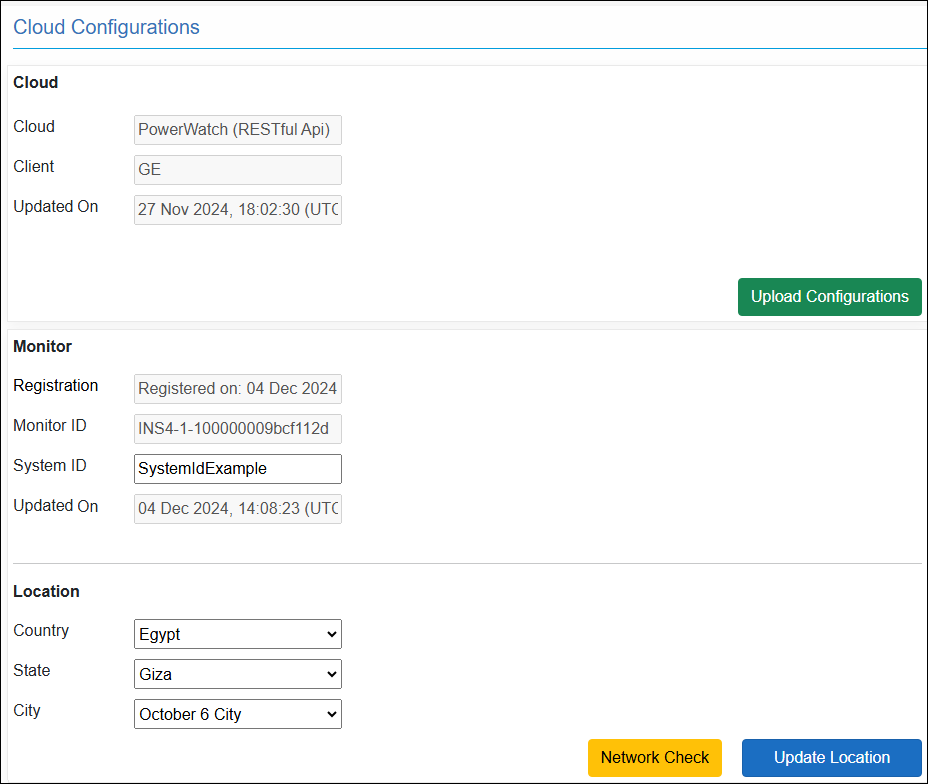
- For successful registration, System ID should exist in Cloud database.
- If system ID doesn't exist, contact the cloud admin of your region.
- No problem to try registration only once, and Inspector will keep retrying to register automatically.
- Therefore, if the System ID is being added later to cloud database, the monitor will be auto-registered.
Note: Any readings/events collected before supplying a System ID, will never be sent to cloud.
Created with the Personal Edition of HelpNDoc: Maximize Your Reach: Convert Your Word Document to an ePub or Kindle eBook