
Connecting Interfaces
HTC Sensor Connection
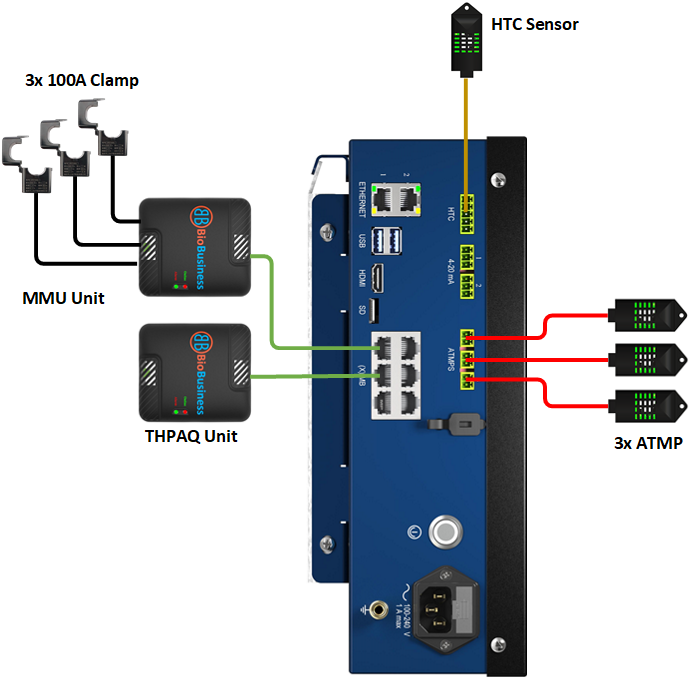
- Use the attached cable to connect the module to the HTC interface.
1. Identify the locations where temperature needs to be measured.
2. Fix the sensors using adhesive.
3. Prepare the sensor wires.
4. Connect the 2-wire ATMP sensor (0.5 mm cable).
5. Connect the other end to the 2-pin connector.
6. Connect the connector to the ATMP interface.
Note: The cable length can be extended up to 10 meters. Use a 2-wire cable with a cross-section of 0.5 mm².
- Connect a Cat6 cable between the xMB interface and the THPAQ RJ45 port.
- Open the 100 A current clamp and place it around L1, L2, and L3.
- Connect a Cat6 cable between the xMB interface and the MMU RJ45 port.
- The router is powered from the Inspector USB interface.
- The Ethernet cable is CAT6 or CAT5 and also can be extended to 30 meters. The wire configuration of the cable is straight with standard Ethernet connection.
- Test the 4G signal at the router installation location using a mobile phone with the same network operator as the USB modem.
- If the signal is weak, install the router in another location with a stronger 4G signal.
Note: - You can change the network operator (USB modem) to get a stronger signal.
- You can use a pre-installed router instead of the supplied router. if you wish but the network settings must be reconfigured according to the site network.
- Once all connections are completed, you shall turn on the circuit breakers of safety Box and turn on the Inspector power switch.
- The five LEDs on the device will blink for about 10 seconds, then stabilize. The Running LED shall be turned on constantly. The Internet LED shall be turned ON constantly if the device is connected to internet.
- Apply the configurations needed for Inspector device according to the site.
- Wait for 3 minutes and check the router LEDs. If they are all turned ON except WIFI LED, the device shall be sending readings to the website every 4 minutes. Otherwise, recheck the cable connections and the signal at the router.
Created with the Personal Edition of HelpNDoc: Effortlessly Create Encrypted, Password-Protected PDFs