
Change Alarms Configurations for Bulk sites Page
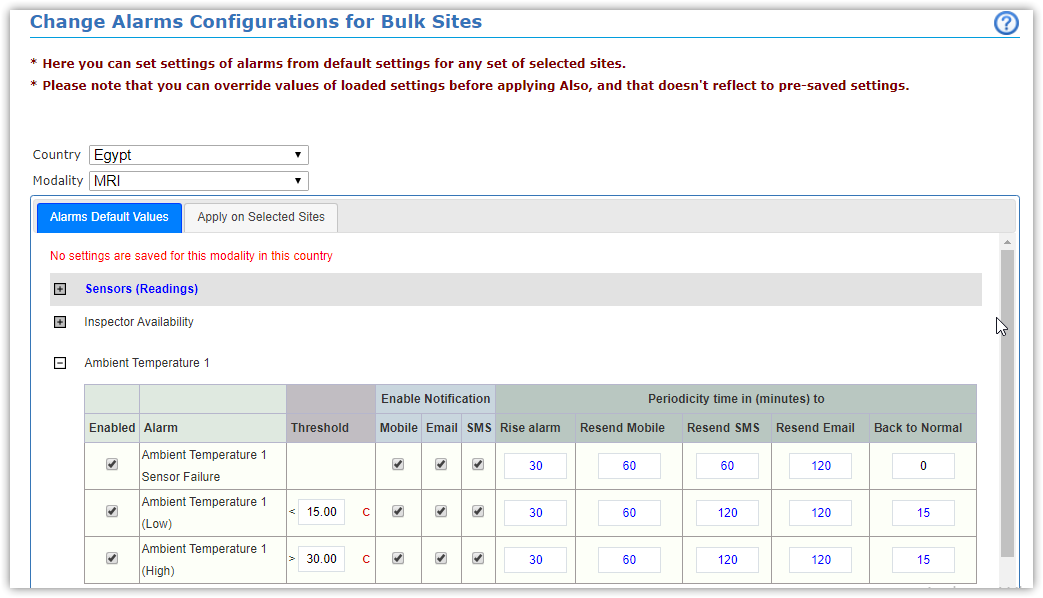
This page helps you to set alarms from default settings to keep them as they are, or overwrite some with new settings,
and apply them on selected sites, including two tabs ('Alarms Default Values' & 'Apply on Selected Sites').
To apply default settings for selected sites:
Alarms Default Values tab is responsible for editing default values set in Alarms Defaults Configurations page of:
- Enable Alarm
- Alarm Threshold
- Enable Notification (Mobile, Email, SMS or All)
- Periodicity time (Rise Alarm, Resend Mobile Notification, Resend SMS, Resend Email and Back to Normal Status)
For more information about alarms behavior and custom conditions, check Alarms Service Process chapter.
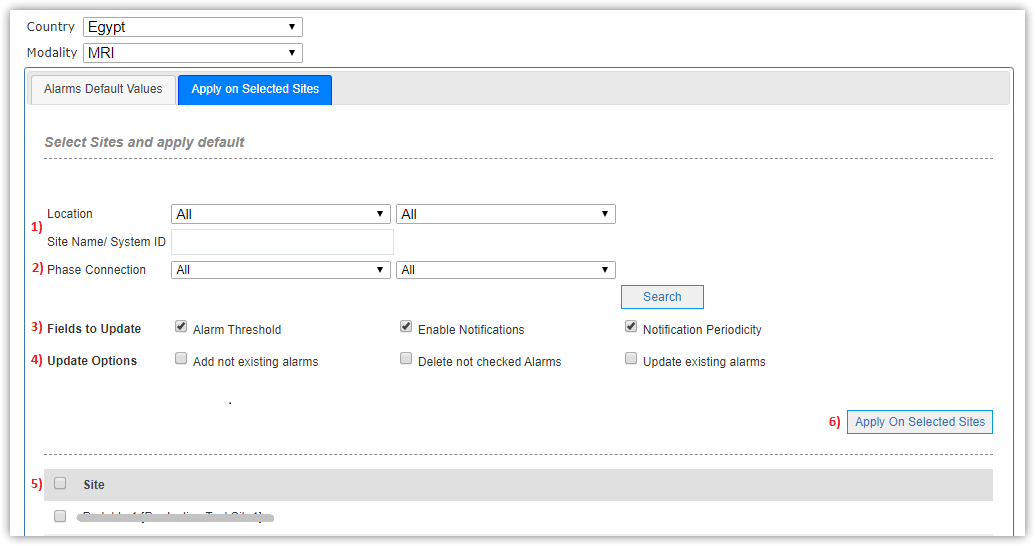
Apply on Selected Sites page is responsible for applying alarms settings according to specific filters as following:
- Select Location of sites you want to set or Search by Name/System ID.
- Select Phase Connection (Single Phase & Three Phase) and line connection (Line to Neutral & Line to Line).
- Select fields of update to be applied on selected sites:
- Alarm Threshold
- Enable Notifications
- Notification Periodicity
- Select Update Options to enable/disable alarms
- Add not existing alarms
- Delete not checked alarms
- Update existing alarms
- Select Sites you want to apply all settings on.
- Click Apply on Selected Sites button.
Example of editing alarms settings for bulk sites:
- Select country and modality of sites.
- From Alarm Default Values tab, for specific alarm (SMB1 Ambient Humidity):
- Edit min (25), max value as default
- Disable email notification, others as default (Mobile & SMS)
- Edit periodicity time (Raise Time:35), others as default
- From Apply on selected Sites tab, filter sites by:
- Location: Cairo
- Phase Connection: Single Phase, Line to Neutral
- Select Fields to Update, including:
- Alarm Threshold
- Enable notifications
- Notification periodicity
- Select Update Options, including:
- Update existing alarms
- Select sites filtered to be edited according to previous settings.
- Click Apply on Selected Sites button to save settings.
- To make sure of this saved settings, check 'Site's Alarms' tab in Site Info page.