
Software Configurations
Cloud Side:
To create new site, go to Create New Site page to get your site's configuration file successfully.
Hardware Side:
For first time configuration, follow the following steps:
- Connect Inspector to your computer directly using an Ethernet cross-over cable (or regular Ethernet cable if the personal computer’s network interface card supports Gigabit Ethernet).
- Set the network configurations of your computer as follows:
- IP Address: 192.168.0.2
- Subnet Mask: 255.255.255.0
- Default Gateway: 192.168.0.254
- From your browser open 192.168.0.1
This will take you to the Configuration page, Embedded Webserver Configurations chapter to complete installation process.
After successful installation, Now your Inspector is ready, just connect hardware system to the appropriate network with internet access and open your site’s Readings page on the cloud front end to check reading values.
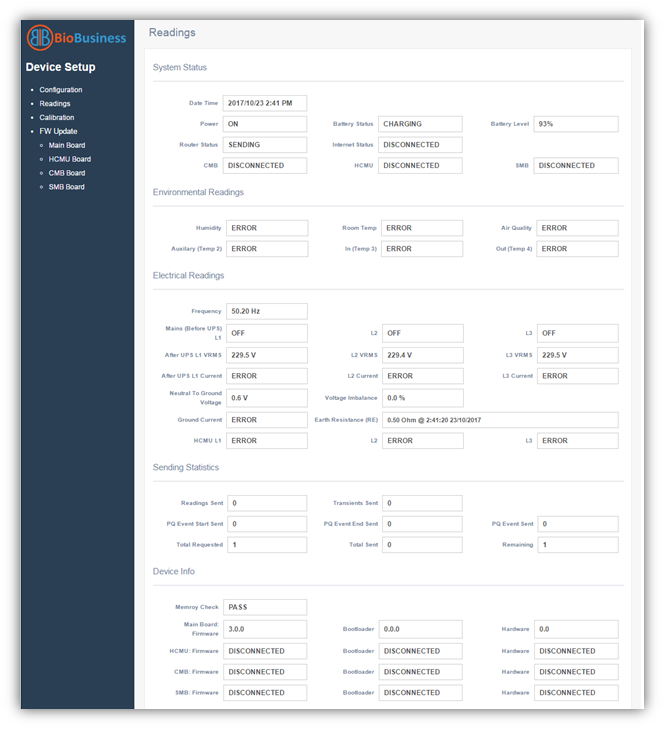
Please note that, this page is not available during firmware update.
|
In case of new configurations include change in default network configurations of Inspector, then after restart you may need to reconfigure your computer to be able to retain the connection between it and Inspector system (only if new Inspector’s network configurations conflict with computer network configurations). |

|
Inspector system may automatically update firmware any time, a new update is available online. While updating, the “Running” and “Online” LEDs are blinking. |
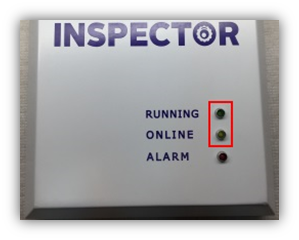
|
Inspector may update firmware on startup if a new firmware is available that will delay sending readings to cloud until firmware update completes, so it may take about 20 minutes for readings to apply on Reading page of the cloud website. |
Finally, when everything is OK, you need to activate site:
- First, go to the Site Info page (from the info icon of site as illustrated in Site status Monitor section)
- At the top left corner, you can see site status is “Inspector Under Service”
- Click “Change” button to jump to site in 'Site Status'
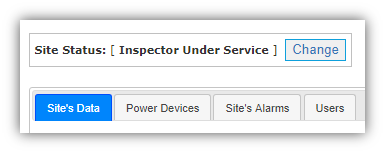
From Site Status page, select the Active status from drop down list on the right of site name.
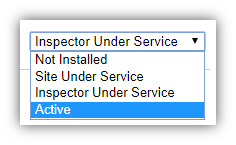
Notice:
- Site Status page is accessible from Control panel for any user has the privilege, when site status is not active, all alarms are paused as status means that there is some work or maintenance in site, either in Inspector system (Inspector Under Service) or in the site itself (Site Under Service)
- By setting site status, all alarm notification recipients receive a notification with the new status to inform them if site is Active and alarm system is working or site/Inspectors Under Service, so alarm system is disabled and readings on site may not be accurate