
Create New Site Page
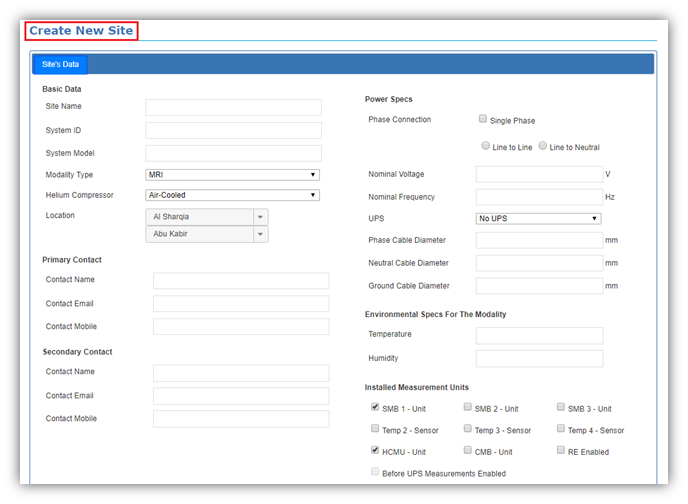
This page is responsible for creating new site and setting its data, including:
- Basic Data
- Primary Contact
- Secondary Contact
- Power Specs
- Environmental Specs for The Modality
- Installed Measurement Units
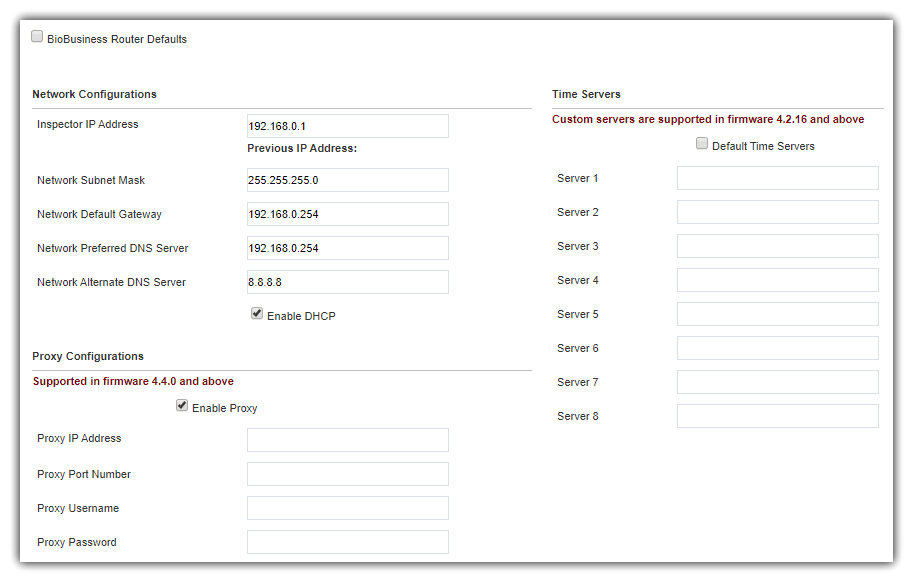
- Hardware Network Configurations
|
A newly created site is valid for two weeks only, till it is activated by subscription renewal activation code. Learn more |

Supply site data, at least fill out the mandatory fields, If you try to save while there are missing mandatory fields, a red asterisk (*) will appear on the right of each missing mandatory field.
|
L-L Nominal Voltage field shall be displayed only in Power Specs Section in case of Three phase, L-N connection and readings are displayed according to its value. |

Note:
Readings and alarms are affected by configuration of Phase Connection & Installed Measurement Units sections as follows:
- Single phase configuration deactivates L2 and L3 for Phase Current and VRMS
- VRMS Line to Neutral parameters are activated when site is configured as "Line to Neutral", either Single or Three phase
- VRMS Line to Line parameters are activated when site is configured as "Line to Line" or "Three Phase Line to Neutral"
- Line to Line configuration option is deactivated when Single Phase option is selected
- VRMS parameters are mandatory for after UPS connections
- If UPS is installed (selected from drop down list), the option of "Before UPS Measurements Enabled" in Installed Measurement Units section is activated
- If "Before UPS Measurements Enabled" option is checked, the VRMS parameters are activated for the "Before UPS" measurements as well as the "After UPS" VRMS parameters, and they follow the same rules explained above
- For each option in "Installed Measurement Units" section, the corresponding parameters are activated as follows:
- SMB Units: corresponding SMB (n) temperature, humidity, and air quality parameters
- Temperature Sensors: corresponding temperature parameter
- HCMU: Helium compressor power (option is activated only if Helium Compressor is selected in Basic Data section)
- CMB: Phase Current parameters
- RE Enabled: Earth Resistance parameter (user checks if RE fuse and connections are installed)
- Before UPS Measurements Enabled: VRMS parameters for the before UPS connections (option is activated when user selects UPS form the drop sown list)
- All deactivated parameters are hidden in Current Readings page, and in 'Readings & Alarms' tabs in Edit Site and Site Info pages
- Alarms of deactivated parameters are automatically disabled for the site
- Configuration doesn't affect till user saves data of 'Site's Data' tab in Edit Site page
|
During your setting for network configurations, consider also configurations illustrated in LAN Required Security Permissions chapter. |
Network Configurations
Finally, supply the hardware network configurations as you have two options:
- If you are using BioBusiness router, just check the BioBusiness Router Defaults check box, that will fill network configuration fields with default values for BioBusiness router
If Inspector and DHCP server are on the same network, you need to get Inspector IP address using any IP scanning software like IP scanner
- If you are using another router or connecting via Ethernet, uncheck BioBusiness Router Defaults check box and manually configure network
- IP Address: Inspector IP address, must have the same network number (the first three segments of the IP)
- Subnet Mask, Default Gateway, Preferred DNS Server, and Alternate DNS Server, are the same as any machine on the network
- You may need to contact network administrator of the premises in which Inspector system is installed, to setup network configurations properly
Time Servers:
- You can use default time servers of Inspector through Enable Time Servers
- You can use custom servers and configure your own through Disable Time Servers
|
Custom time servers are only supported with Firmware Version 4.2.16 and versions above this. |
Proxy Configurations
- Inspector supports Web Proxy (HTTPS Proxy) servers
- To configure proxy, you need an IP address and port number
- Inspector supports only basic authentication (username and password) if any
Other types of proxy servers are not supported.
|
Proxy configurations are supported with Firmware Version 4.4.0 and versions above this. |
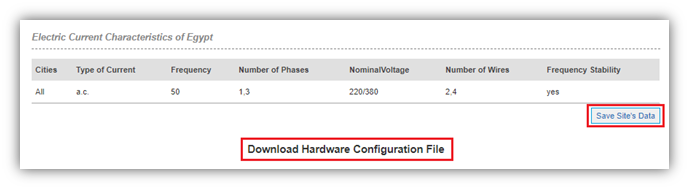
- Now you have set the most needed configuration for a site to start work, by saving data, a new site is created
- Once site is successfully created, a hyperlink for configuration file appears at the bottom of the page
- Click “Download Hardware Configuration File” hyperlink to download the (.bbc) configuration file, that you will use to configure the hardware system,
as explained in 'Hardware Side' in Software Configurations chapter
|
Inspector auto-detects DHCP server on the network on startup, if DHCP exists, Inspector ignores manually set network configurations. If later connected to a network without a DHCP server, Inspector operates with the latest used network configurations. To switch from/to DHCP mode, Inspector is needed to be restarted. |
To get report with all site's information, click Generate Report button below.
